
How to sign in and create a chat
The chat workspace chat.smsbat.com is where operators talk to customers from all connected channels: Viber, Viber bots, Telegram, WhatsApp, the website widget, Facebook, Instagram, Rozetka, Prom and OLX. This page explains how to sign in, what you see on the screen and how to start a new chat yourself.
To handle an incoming conversation (take it, reply, close it) see How to handle a conversation. Templates, contacts and personal settings are described in Templates, contacts and settings.
Before you start
You need a login and a password. Operators cannot sign up on their own: the administrator creates them in omni.smsbat.com and activates them, see How to create operators.
The same account also works in the SMSBAT Omni mobile apps and in the Chrome extension.
Sign in
- Open chat.smsbat.com. The Welcome page opens.
- Enter your Login and Password. The eye icon in the password field shows what you typed.
- Press Sign in.
If the login or password is wrong, you see Error logging in.
The Terms of use link at the bottom of the page opens the SMSBAT terms of use.
On a phone screen the workspace shows the hint “Please note that using desktop provides better experience” the first time. Press Got it to continue; everything works on a phone, but a computer screen is more comfortable.
To sign out, press Logout at the bottom of the left menu.
The workspace at a glance
Left menu
The narrow menu on the left is always visible on a computer. On a phone or a small window, open it with the menu icon in the top-right corner.
| Item | What it opens |
|---|---|
| Chats | The chat list and the open conversation. The red number is the count of unread messages. |
| Messages | The Scheduled messages list for all chats. |
| Contacts | Customer contacts, blocked contacts and unsubscribed users. Not shown to operators. |
| Handbook | Chat statistics. |
| Templates | Message templates and template variables. |
| Content | Comments and posts from your Facebook and Instagram pages. |
| Settings | Theme, interface language, text size, sounds and operator languages. |
| Bell icon | The notification center. The red number is the count of unread notifications. |
| Logout | Signs you out. |
Pages other than Chats are described in Templates, contacts and settings.
Chat menu: quick filters and tags
On a computer, the menu icon (three lines) under the SMSBAT logo opens a second panel next to the left menu.
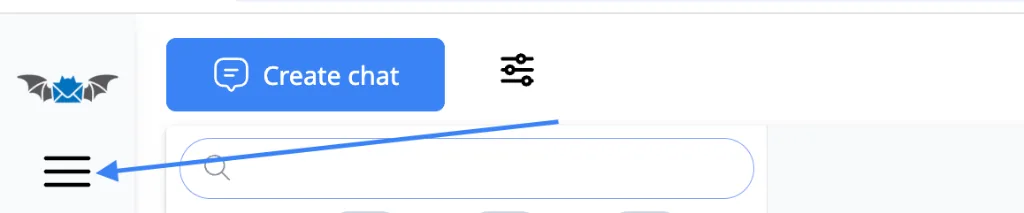
The panel contains:
- Create chat — starts a new chat (see below).
- Quick filters:
- Main — all chats (the default view);
- Need operator — chats that no operator has taken yet;
- My chats — chats assigned to you;
- Starred — chats marked with a star.
- Tags — click to expand the list of tags. Type in Search to find a tag, then click a tag to show only chats with this tag. Click it again to remove it from the filter. You can select several tags.
- Your name at the bottom.
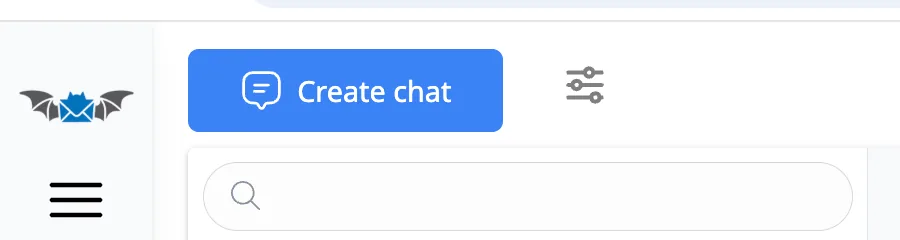
When this panel is open, the page title shows Main; when it is closed, the Create chat button appears in the header instead.
On a phone the same quick filters and the Create chat button are in the Tabs bar at the bottom of the screen.
Filter bar
Click the filters icon next to the page title (tooltip Show filters / Hide filters) to show or hide the filter bar.
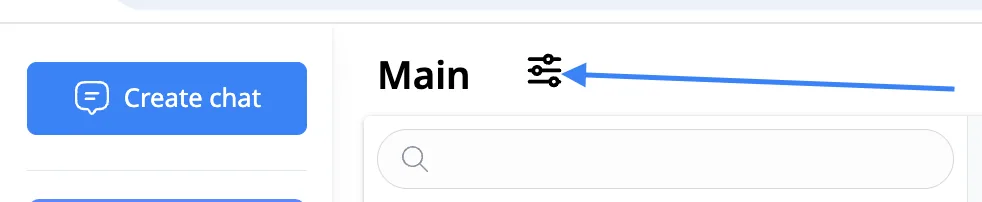

| Filter | What it does |
|---|---|
| Organization | Shows chats of one organization. Not shown to operators. |
| Operator | Shows chats assigned to one or several operators. You can search by name or login. |
| Chat type | Shows one channel: All, Viber, Viber Bots, Telegram, Whatsapp, Widgets, Rozetka, Facebook, Instagram, Prom or OLX. |
| Status | Shows chats in one or several statuses: New, Open, Waiting, On pause, Closed. |
| With or without operator | With operator — chats somebody has taken; Without operator — chats nobody has taken yet. |
| Tags | Shows chats with the selected tags. |
Each filter has a clear (×) button. If you open the chat list from Handbook or from a contact (Go to chats), extra filters appear as chips under the filter bar, labelled Additional filters. Click × on a chip to remove it.
The workspace remembers your filters in this browser, so they stay the same after you reload the page.
Above the chat list
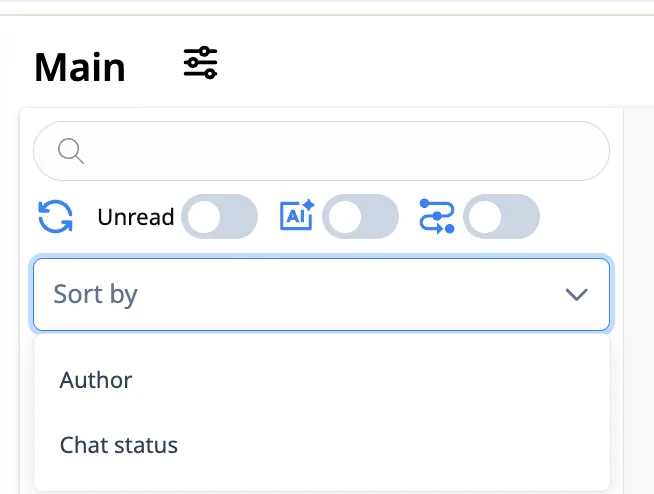
| Control | What it does |
|---|---|
| Search box | Finds chats, for example by phone number. Clear the box to see all chats again. |
| Refresh icon (Refresh chat list) | Reloads the list. |
| Unread switch | Shows only chats with unread messages. |
| AI icon switch (AI Agent) | Shows only chats handled by the AI agent. |
| Chain icon switch (Chat thread) | When on (the default), all conversations with a customer are shown as one continuous thread, including broadcast messages sent to them. |
| Sort by | Sorts the list by Author or by Chat status. Clear it to sort by the latest message. |
What a chat in the list shows
- A coloured dot with the chat status: blue — New, red — Open, yellow — Waiting, orange — On pause, green — Closed.
- The customer’s picture with the channel icon; a yellow star if the chat is starred.
- An AI icon before the name if the AI agent is connected to the chat.
- The customer’s name or phone number and the time of the last message.
- A red @ icon if a colleague mentioned you in this chat.
- The last message, or Draft: and your unsent text.
- Up to two tags (+N if there are more). Click the tags to change them.
- The name of the operator who handles the chat.
- The number of unread messages.
The list loads more chats as you scroll down.
How to create a chat
You can write to a customer first through Viber, a Viber bot, a Telegram bot or WhatsApp. Chats in other channels (widget, Facebook, Instagram, Rozetka, Prom, OLX) can only be started by the customer.
Step 1. Open the form
Press Create chat (in the chat menu panel or in the header).
The Create window opens.
Step 2. Choose the source
Open Source and choose the channel.
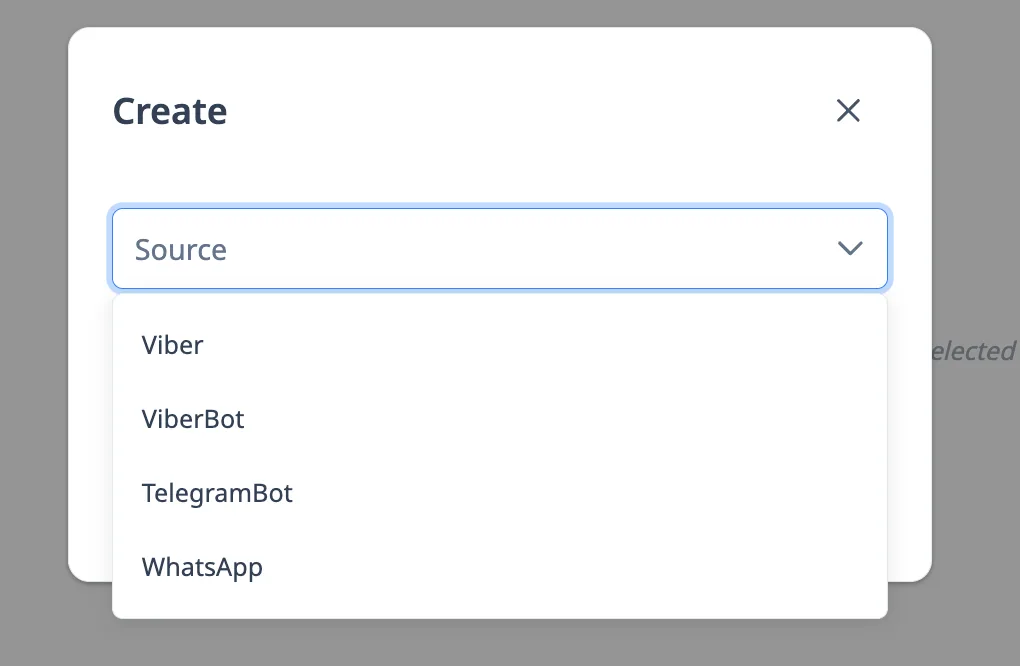
The form shows different fields for each source:
| Source | Fields | What to enter |
|---|---|---|
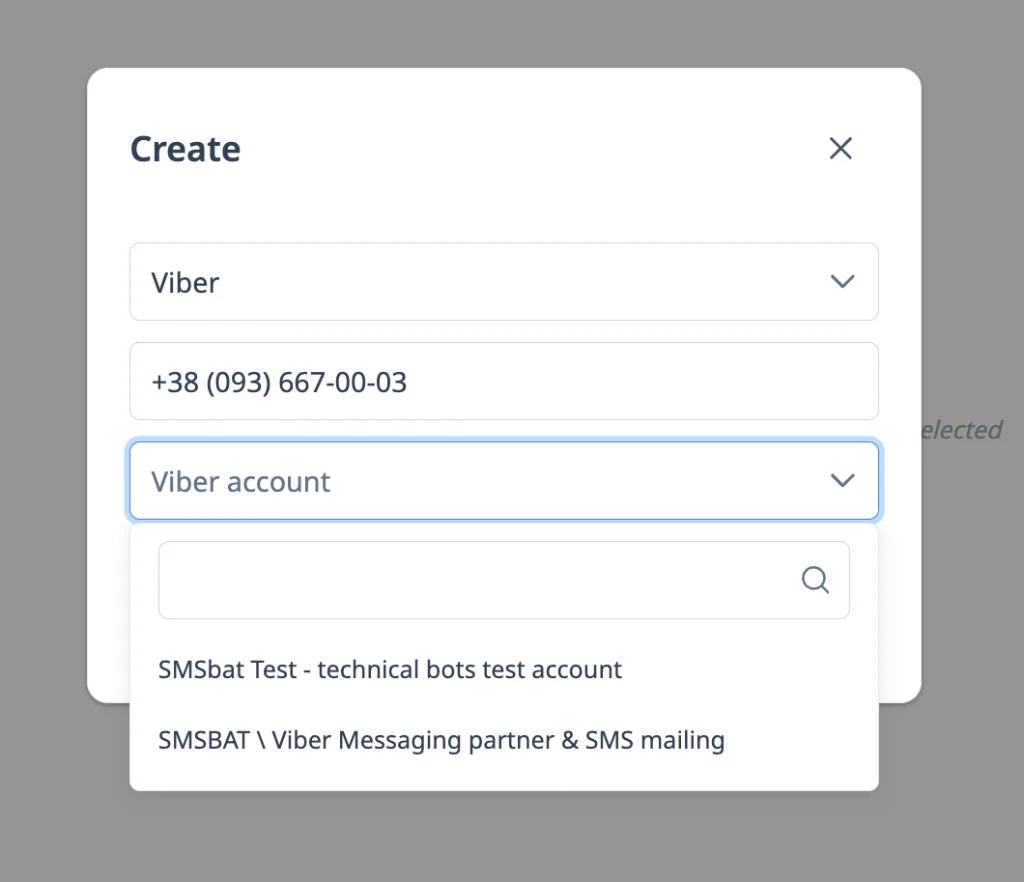
| Viber | Phone, Viber account | The customer’s phone number and the Viber business account (sender) the message will come from. |
| ViberBot | Viber bot, Viber user | First the bot, then the customer among the bot’s users. Type in Search to find a user by name or phone. |
| TelegramBot | Telegram bot, Telegram user | First the bot, then the customer among the bot’s users. |
| Phone, WhatsApp account | The customer’s phone number and your WhatsApp business number. Type in Search to find the account. |
Accounts limited to Viber only see Viber and ViberBot.
Step 3. Enter the phone number (Viber and WhatsApp)
Type the number in the Phone field. The field formats the number as you type:
- a number that starts with
0or380is formatted as a Ukrainian number, for example+38 (0XX) XXX-XX-XX; - any other number is entered in international format with the country code, up to 15 digits.
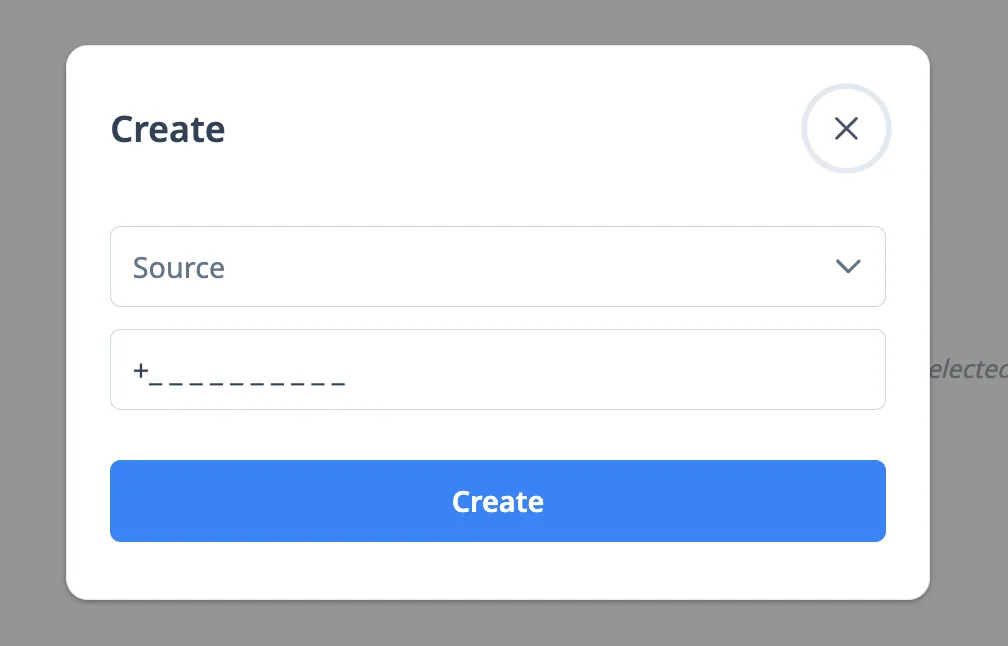
Then choose the Viber account or WhatsApp account.
Step 3 (bots). Choose the bot user
For ViberBot and TelegramBot choose the bot first; the user list then loads for that bot. Users who left the bot are marked Left chat. Users marked Blocked cannot be selected.
Step 4. Create the chat
Press Create. The message Successfully created appears, and in a few seconds the new chat opens on the screen. Type your first message and send it, see How to handle a conversation.
If a required field is empty, it is highlighted with Field is required.
Common questions
I signed in, but the chat list is empty. Check the filter bar, the quick filter (Main, Need operator, My chats, Starred), the Unread and AI switches and the search box. The workspace remembers your filters, so a filter set yesterday may still be active. Remove the filters or press the refresh icon.
I don’t see the Contacts page or the Organization filter. They are available to administrators only, not to operators.
I can’t find WhatsApp or Telegram in the Source list. Your account is limited to Viber. Ask your administrator.
The bot user I need is not in the list. The list contains only people who have already started the bot, so the customer has to write to the bot first. Users marked Blocked cannot be selected.
I pressed Create, but the chat did not open. Wait a few seconds, then find the chat in the list with the search box (for example by phone number) or press the refresh icon. Check also that the filters do not hide it.
How do I start a chat in Instagram, Facebook or OLX? This is not possible from the workspace: the customer has to write first.