
Sign in to the mobile app
The Omnichannel Contact Center by SMSBAT app is for operators. You sign in with the same login and password as in the web workspace chat.smsbat.com. This page covers the first launch: the language, signing in, notifications and signing out.
For everything else in the app, see the Mobile app guide.
Before you start
- Install the app: App Store for iPhone and iPad, Google Play for Android.
- Get your operator login and password from your administrator. Accounts are created in omni.smsbat.com, see How to create operators. You cannot create an account in the app.
Change the language
The sign-in screen has a language button in the top right corner. It shows the current language.
- Tap the language button. The App Language list opens.
- Find the language in the list or type its name in Search languages…. 38 languages are available.
- Tap the language. The list closes and the app switches at once.
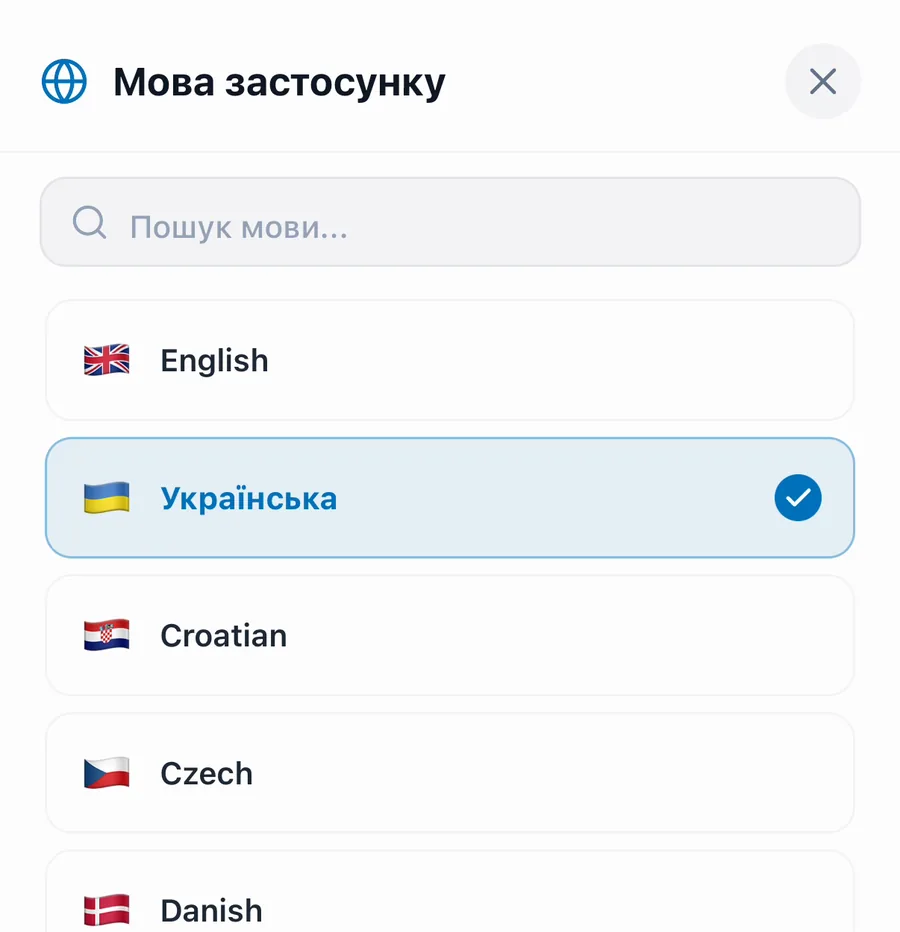
The app keeps the language you chose. You can change it later in Settings → App Language.
Note
In app versions before 1.2.8 the app started in Ukrainian every time it was opened. Update the app to keep your language.
Sign in
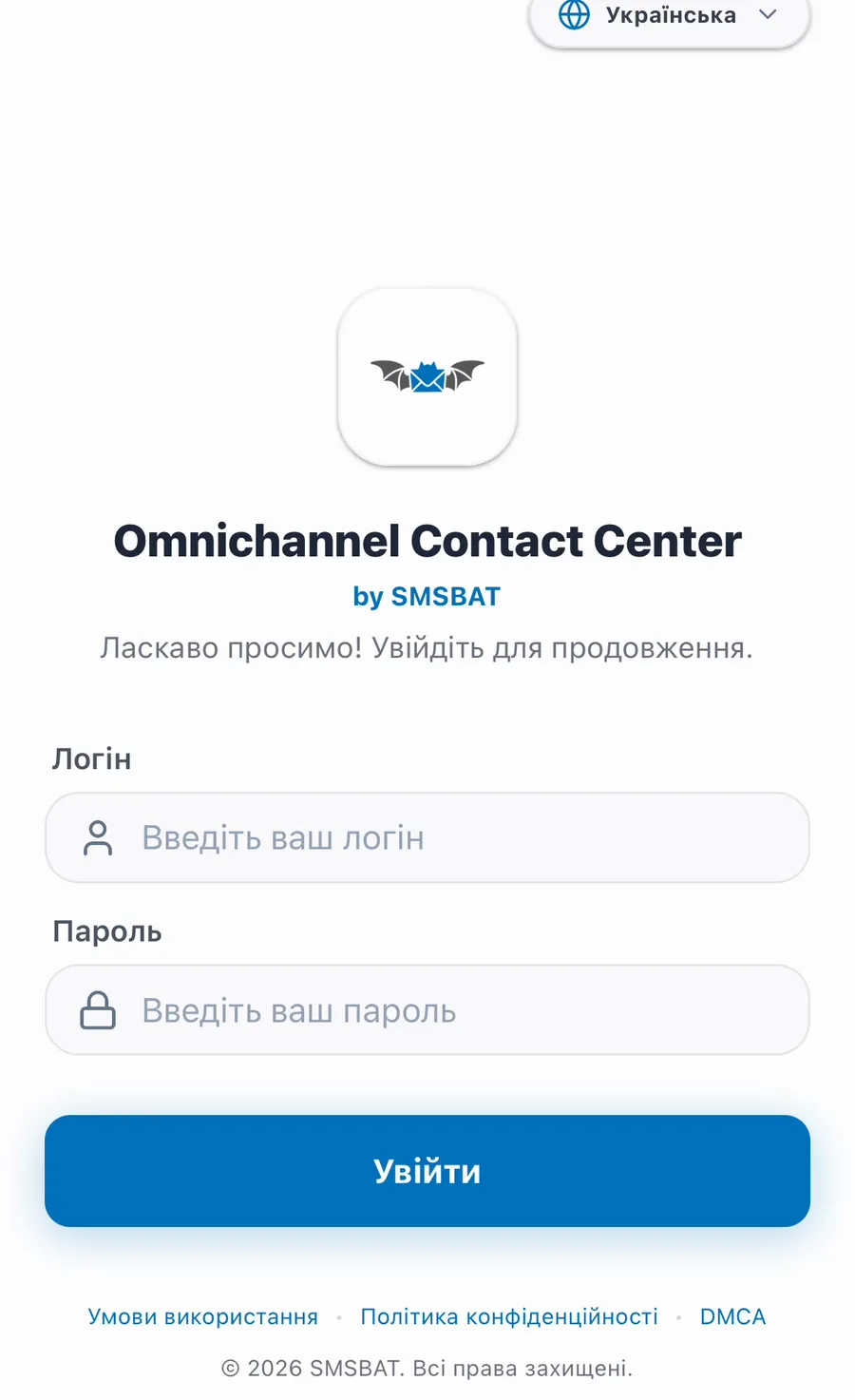
- In Login, enter your operator login (Enter your login).
- In Password, enter your password (Enter your password).
- Tap Sign In.
| Field | What to enter |
|---|---|
| Login | Your operator login, the same one you use at chat.smsbat.com. |
| Password | Your operator password. |
If one of the fields is empty, Sign In does nothing. The app always connects to SMSBAT: there is no server choice and no sign-in with Face ID, Touch ID or a fingerprint.
The links Terms of Use, Privacy Policy and DMCA Notice at the bottom of the screen open the SMSBAT legal pages.
Allow notifications
Right after the first sign-in the app asks for permission to send notifications. Tap Allow. Without it you are not told about new messages while the app is closed.
If you declined, turn notifications on in the phone settings, see Turn notifications on.
Staying signed in
The app remembers you. Next time it opens straight on the chat list, and if your session has expired it signs you in again in the background. You see the sign-in screen again only after you sign out, or if your login or password has been changed or your operator account has been deactivated.
Sign out
- Tap the gear icon at the bottom to open Settings.
- Scroll down and tap Log Out.
You are signed out at once, without a confirmation. The phone stops receiving notifications for your account and the saved login and password are removed from the device. Always sign out before you hand the phone to someone else.
Common questions
The app says “Invalid login or password. Please check the details you entered.” The login or password is wrong. Check the keyboard language and Caps Lock, and that there is no space at the end. The login and password are the same as at chat.smsbat.com.
I see “Sign-in error. Check your login and password.” The sign-in did not go through. Check the internet connection and try again. If it repeats, check the login and password.
I forgot my password. Ask your administrator to set a new one in omni.smsbat.com, see How to create operators. The app has no password recovery.
My login and password are right, but I still cannot sign in. Ask your administrator to check that your operator status is Active.
Can I create an account in the app? No. Operator accounts are created by the administrator.
Can I use the app and chat.smsbat.com at the same time? Yes. Both show the same chats and update in real time.