
Reply to a customer in the mobile app
Every reply you send in the Omnichannel Contact Center by SMSBAT app goes to the customer in the channel they wrote from: Viber, a Viber bot, Telegram, WhatsApp, Facebook, Instagram or the website widget.
For everything else in the app, see the Mobile app guide. To leave a note that only your colleagues see, write an internal comment instead, see Comments and mentions in the mobile app.
Write the reply
- Open the chat from the chat list.
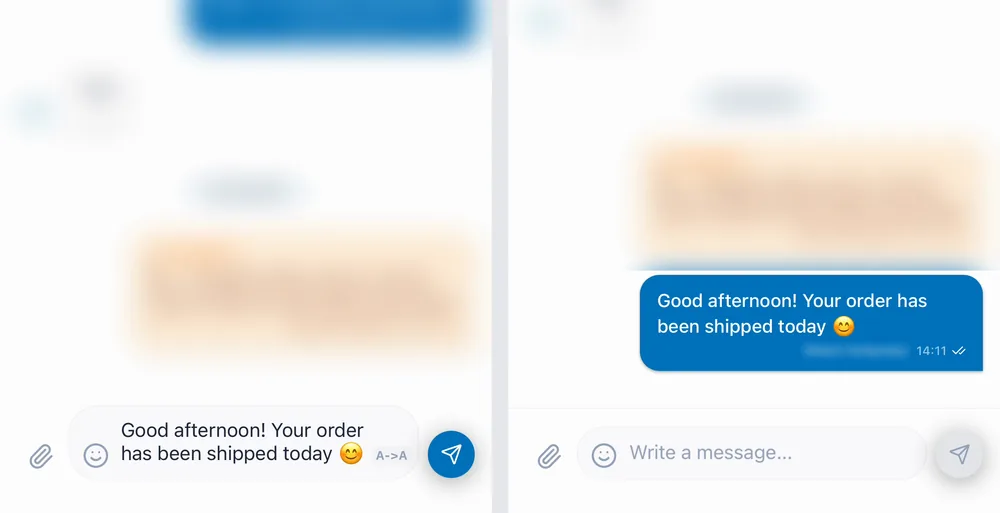
- Tap Write a message… at the bottom of the screen and type your text. The send button on the right turns blue.
- For an emoji, tap the smiley on the left of the box and pick one. It goes where the cursor is.
Send it
Tap the send button (the paper plane). The message appears in the chat as a blue bubble on the right, with the time and your name.
| What you see on the bubble | What it means |
|---|---|
| A spinner | The message is being sent. |
| Two ticks | The message has gone to the customer. |
| Red bubble with ! | The message was not sent. Check your connection and send it again. |
What changes when you reply
- A chat with the status New moves to Open. See Chat statuses.
- If an AI agent was connected to the chat, it is disconnected, so the customer talks only to you. You can connect it again with the robot button in the chat header.
Common questions
Can I send a photo, a file or a ready-made reply? Yes. Tap the paper clip to the left of the box: it offers Photos, Document and Templates. See Attachments and templates.
Can I edit or delete a message after sending it? Press and hold the message to open its actions. See Actions on a message.