
Chat menu and statuses in the mobile app
Every chat in the Omnichannel Contact Center by SMSBAT app has a menu with four actions: copy a link to the chat, send a survey, change the status and mark the chat as unread.
For everything else in the app, see the Mobile app guide.
Open the chat menu
In a chat, tap the three dots in the top right corner. The Chat menu opens. Cancel closes it.
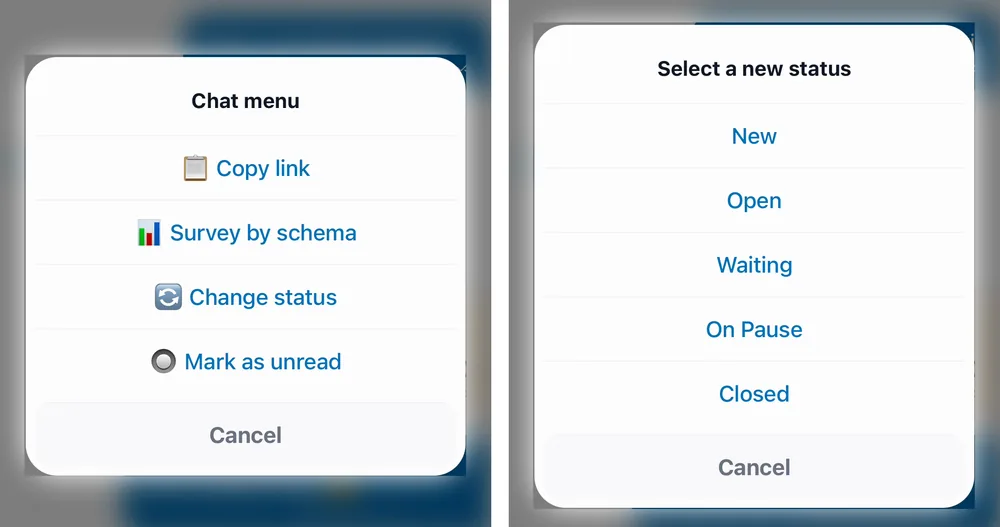
| Item | What it does |
|---|---|
| Copy link | Copies the address of this chat in chat.smsbat.com to the clipboard. Send it to a colleague so they can open the same chat. |
| Survey by schema | Opens the list of your organization’s survey templates. Pick one and tap Send: the customer receives the survey. |
| Change status | Opens Select a new status, see below. |
| Mark as unread | Returns the chat to unread. When a chat is unread, the item reads Mark as read. |
Change the chat status
- Tap Change status.
- In Select a new status, tap the status you need.
The coloured dot next to the channel name in the chat header changes at once, and so does the dot in the chat list.
| Dot | Status |
|---|---|
| Blue | New |
| Red | Open |
| Yellow | Waiting |
| Orange | On Pause |
| Green | Closed |
When you reply to a chat with the status New, it moves to Open by itself, see Reply to a customer in the mobile app.
Mark a chat as unread
Tap Mark as unread to come back to a conversation later. In the chat list the chat is bold again and shows an unread counter. Opening the chat marks it as read.
Common questions
Who can open the copied link? The link opens the chat in chat.smsbat.com after signing in, so it is useful to colleagues from your organization.
Where do the survey templates come from? They are set up in the web workspace for your organization. If the list is empty, ask your administrator.
Can I mark a chat as unread without opening it? Yes. Swipe the chat row from right to left in the chat list and tap Unread. See Quick actions in the mobile app.