
Quick actions in the mobile app
You do not have to open a chat in the Omnichannel Contact Center by SMSBAT app to star it, tag it or change its read state. A swipe on the chat list does it in one step, and Edit mode does it for several chats at once.
For the rest of the chat list, see The main screen of the mobile app. Starred and tagged chats are easy to find later with Filters and search.
Swipe a chat
Swipe a chat row from right to left. Three buttons appear on the right side of the row.
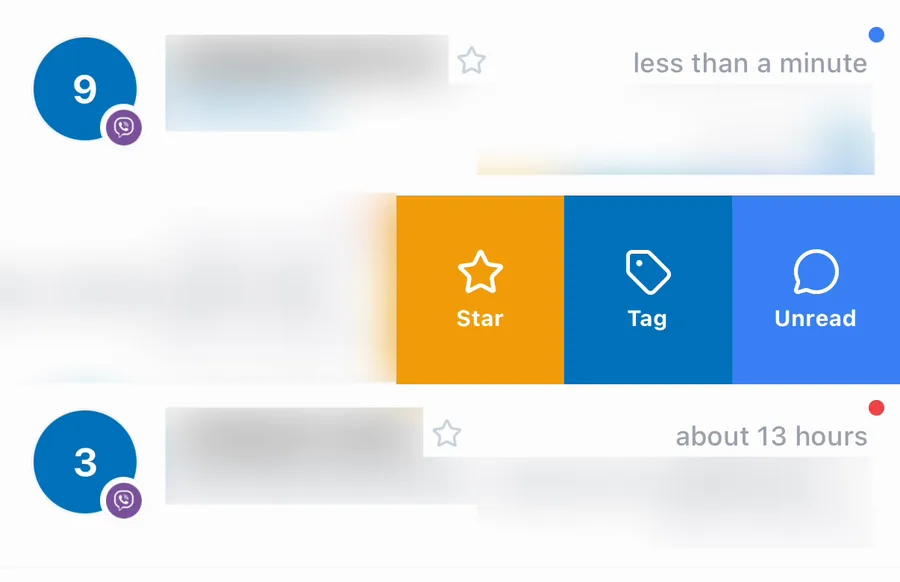
| Button | What it does |
|---|---|
| Star | Marks the chat as starred, or removes the star. The star next to the customer’s name turns yellow. |
| Tag | Opens the Tags window for this chat, see below. |
| Unread / Read | Marks the chat as unread (its last message turns bold and blue, with a counter) or as read again. |
To close the buttons without doing anything, tap anywhere else in the list or swipe the row back.
Tag a chat
- Swipe the chat and tap Tag.
- The Tags window shows your organization’s tags. The ones the chat already has are ticked.
- Tap a tag to tick or untick it. To add a tag that does not exist yet, type it in Create a new tag….
- Tap Done to close the window.
Every tap is saved at once, there is no separate save step: Done and the cross only close the window. The tag list is shared by the whole organization, and the chat’s tags are visible to all operators, in chat.smsbat.com too.
Note
Tapping a ticked tag removes it from the chat for everyone straight away. If you tap one by mistake, tap it again to put it back.
Several chats at once
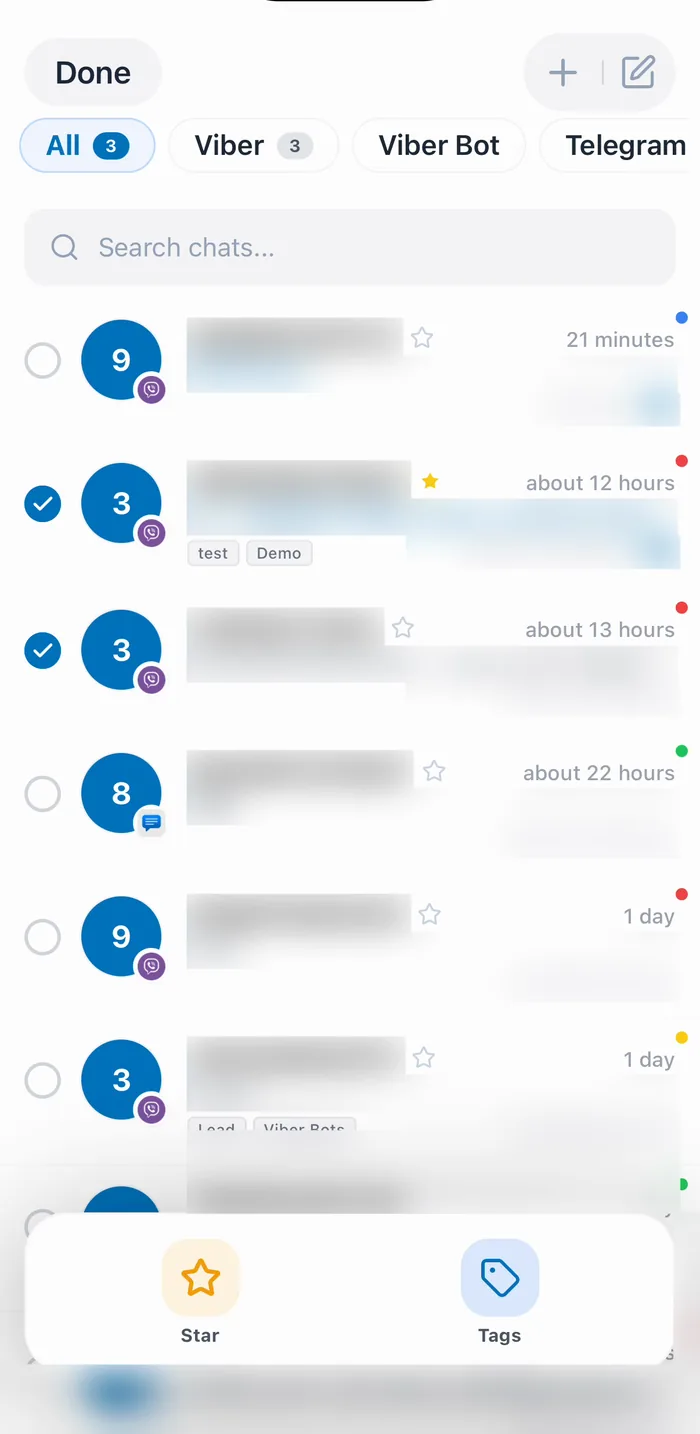
- Tap Edit in the top left corner. A circle appears next to every chat.
- Tap the chats you need. Each one gets a tick.
- At the bottom a panel appears:
- Star stars all the selected chats;
- Tags opens the tag list and adds the tags you pick to all the selected chats.
- Tap Done in the top left corner to leave this mode.
Common questions
The buttons do not appear when I swipe. Swipe from the right edge of the row to the left, horizontally and a little faster. A vertical movement scrolls the list instead.
I marked a chat unread by mistake. Swipe it again and tap Read, or simply open the chat: opening a chat marks it as read.
Will the customer see the star or the tags? No. Stars, tags and the read state are visible only to operators.
Where can I see all starred chats? Open the filter menu (three dots in the bottom bar) and tap Starred. See Filters and search.
Can I mark several chats as read at once? Not in the app. Edit mode only stars and tags. Mark chats read one by one with a swipe, or use chat.smsbat.com.