
Filters and search in the mobile app
The chat list of the Omnichannel Contact Center by SMSBAT app can get long. Filters leave only the chats you need, and the search finds a customer by phone number or name. This page explains both.
For the rest of the chat list, see The main screen of the mobile app. For everything else, see the Mobile app guide.
The filter menu
Tap the three dots in the bottom bar. The filter menu opens at the bottom of the screen.
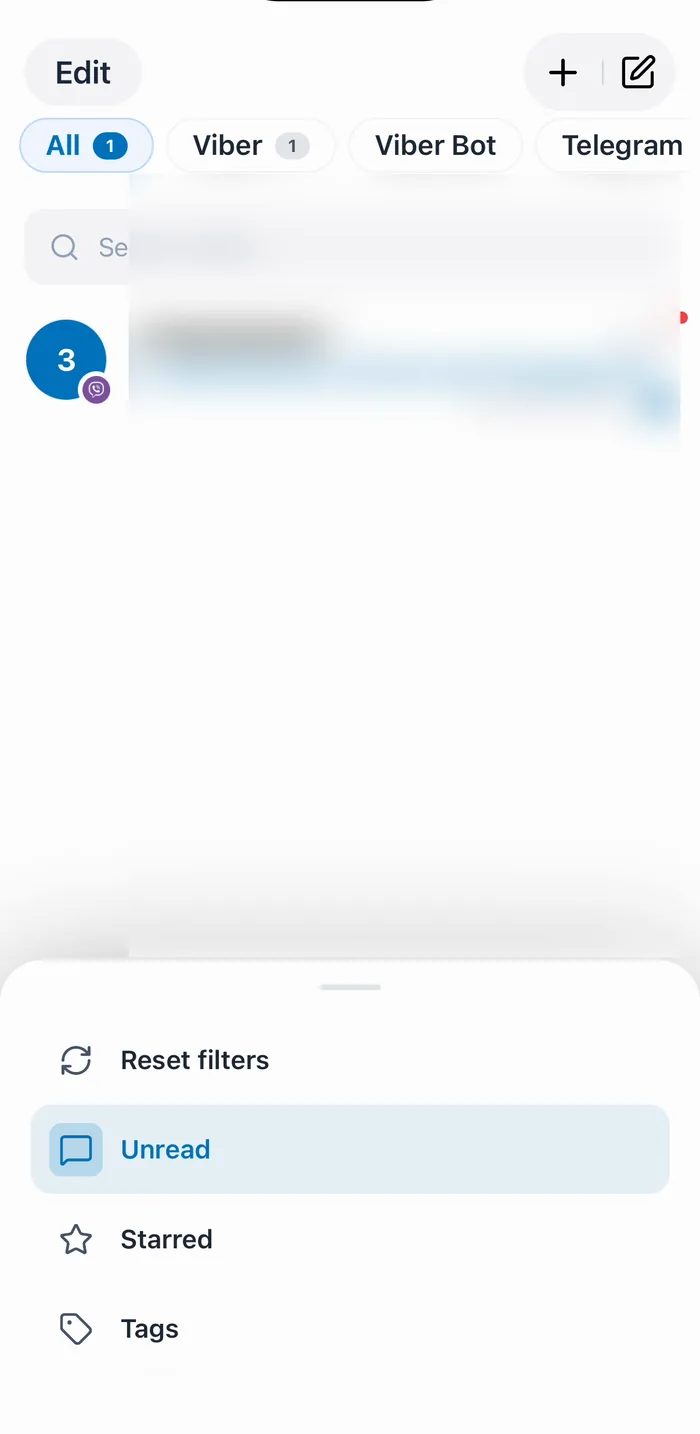
| Item | What it does |
|---|---|
| Reset filters | Switches off every filter, including the channel chip and the search text, and shows all chats again. |
| Unread | Only chats with unread messages. Tap it again to switch it off. |
| Starred | Only chats marked with a star. |
| Tags | Opens Filter by tag: pick one tag to see only the chats that have it. |
The item that is on is highlighted in blue. Tap outside the menu to close it.
The funnel icon
While any filter is on, the three-dots icon in the bottom bar turns into a funnel. It is a reminder that you see only part of your chats.
If the list looks empty or a chat is missing, check this icon first. Open the menu and tap Reset filters.
Filters also combine with the channel chips above the list, for example Viber and Unread together.
Filter by tag
- Tap the three dots, then Tags.
- The Tags window (Filter by tag) lists your organization’s tags. Tap one, for example VIP or Lead.
- The window closes and only the chats with that tag stay in the list.
To show all chats again, open the menu and tap Reset filters.
Tags are added to chats with a swipe or in the contact card, see Quick actions with a swipe.
Search by phone number or name
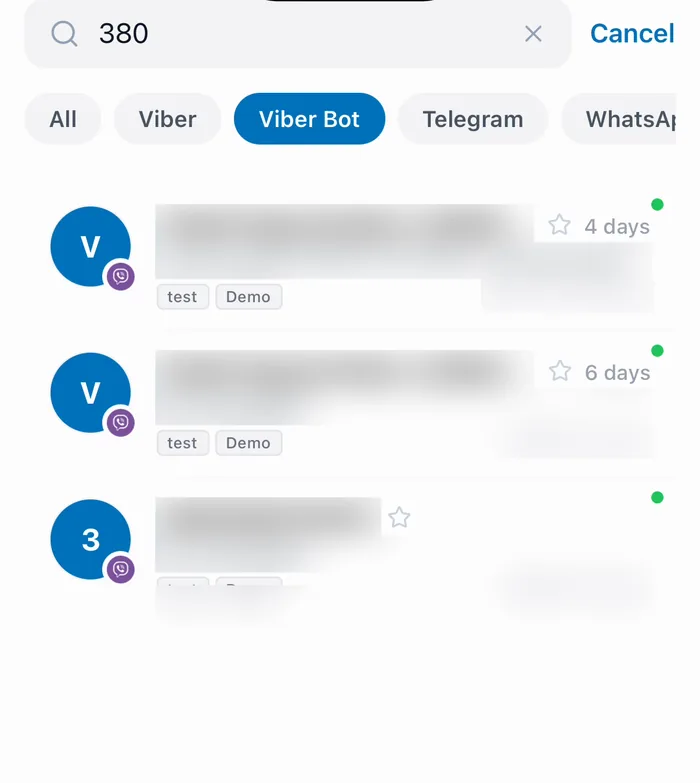
- Tap the round magnifier button to the right of the bottom bar.
- Type a few digits of the phone number or a few letters of the name in Phone number or name…. The results appear as you type.
- To narrow the results to one channel, tap a chip: All, Viber, Viber Bot, Telegram, WhatsApp, Facebook, Instagram, Widget.
- Tap a chat to open it, or tap Cancel to close the search.
The search finds chats in all channels of your organization. If nothing matches, you see Nothing found.
There is also a Search chats… field at the very top of the chat list: pull the list down or scroll to the top to reveal it.
Common questions
The list is empty. A filter is probably on: the bottom bar shows a funnel instead of three dots. Open the menu and tap Reset filters, or tap All in the channel chips.
Can I switch on two filters at once? Yes. For example Unread together with a channel chip or a tag shows only the unread chats of that channel or tag.
The search finds nothing. Check the channel chip in the search: with Viber Bot selected, chats from other channels are not shown. Tap All. Search by part of the number without spaces, for example the last digits.
Where do the tags come from? Tags are created in the app (when you tag a chat with a swipe) or in chat.smsbat.com. They are shared by the whole organization.
Do filters stay on after I close the app? No. When you open the app again, all filters are off and you see every chat.