
Bitrix24 Integration
Install the SMSBAT Messenger app in Bitrix24 to send Viber and SMS messages directly from your Bitrix24 Contact Center and to answer Instagram chats from SMSBAT Omni in a Bitrix24 Open Channel. This guide covers step-by-step installation and configuration.
Overview
The SMSBAT integration with Bitrix24 allows you to:
- Send Viber messages to clients from Bitrix24
- Use SMS fallback when Viber delivery fails
- Manage messaging through the Bitrix24 Contact Center
- Connect SMSBAT as an Open Line channel
- Receive Instagram Direct chats in an Open Channel, including conversations a chatbot hands over to a manager (see Instagram chats in Bitrix24)
Prerequisites
- An active SMSBAT account with an API key
- A Bitrix24 account with administrator access
- An SMS sender name (From Name) registered with SMSBAT
Installation
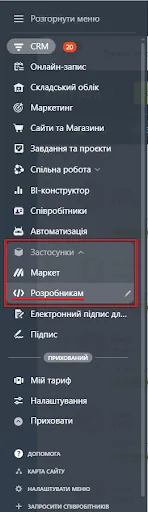
Step 1: Open the Developer Section
Navigate to Applications > Developers in your Bitrix24 menu.
Step 2: Go to the “Other” Tab
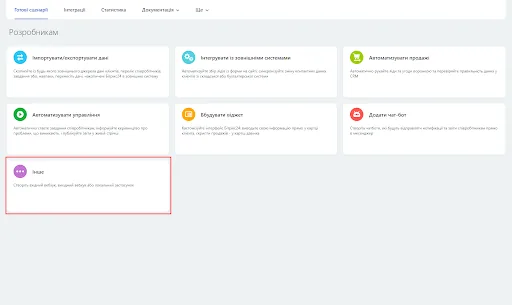
In the developer section, switch to the Other tab to find additional application types.
Step 3: Select “Local Application”
Choose Local Application from the available options.

Step 4: Configure Application Settings
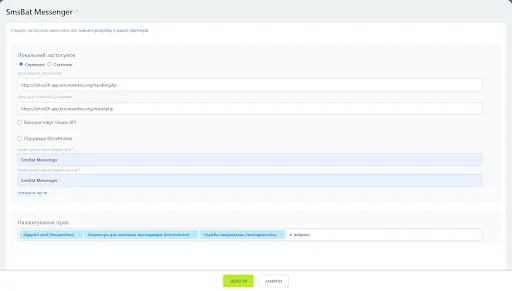
Fill in the following application settings:
| Parameter | Value |
|---|---|
| Application type | Server |
| Handler URL | https://freshchats.ponderacode.com/handler.php |
| Initial setup URL | https://freshchats.ponderacode.com/install.php |
Set the following permissions:
| Permission | Code |
|---|---|
| Open Lines | imopenlines |
| External messenger connectors | imconnector |
| Message service | messageservice |
| Chat and Notifications | im |
Step 5: Save the Application
Click the Save button to register the application.
Step 6: Copy Application Credentials
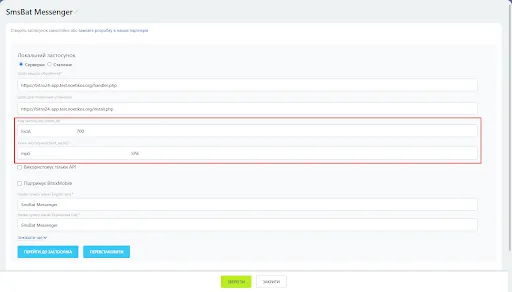
After saving, Bitrix24 will generate unique credentials for the application:
- client_id - Application code
- client_secret - Application secret key
Important
Copy and save both client_id and client_secret values immediately. You will need them in the next step.
Step 7: Open the Application Settings
Click the Go to Application button to open the SMSBAT Messenger Settings page.
Fill in the following fields:
| Field | Description |
|---|---|
| Bitrix24 Client ID | The client_id from the previous step |
| Bitrix24 Client Secret | The client_secret from the previous step |
| SMS API Key | Your personal API key from SMSBAT |
| SMS From Name | The sender name for outgoing messages |
| Send messages with SMS fallback | Enable to use Viber + SMS fallback delivery |
SMS Fallback
When Send messages with SMS fallback is enabled, messages will be delivered via both Viber and SMS channels. If disabled, messages will be sent via Viber only.
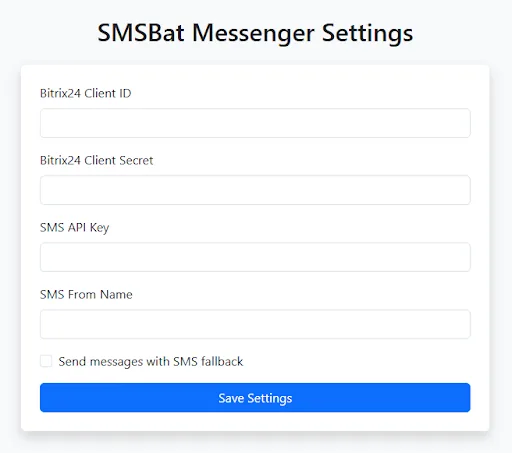
Click Save Settings to apply the configuration.
Step 8: Activate in Contact Center
Navigate to the Contact Center section in Bitrix24 and activate the SMSBat Messenger channel. The app also adds the Instagram (SMSBat) channel, see Instagram chats in Bitrix24.
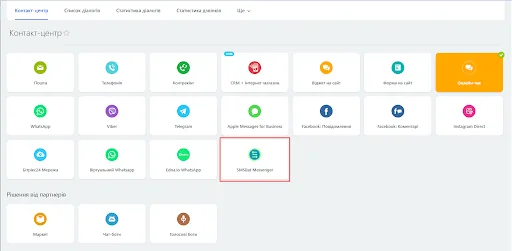
Step 9: Start Using
After the setup is complete, you can start sending messages to clients through the SMSBAT Messenger channel in your Bitrix24 Contact Center.
Settings Reference
| Setting | Description | Required |
|---|---|---|
| Bitrix24 Client ID | OAuth application code from Bitrix24 | Yes |
| Bitrix24 Client Secret | OAuth application secret from Bitrix24 | Yes |
| SMS API Key | Your SMSBAT API key | Yes |
| SMS From Name | Sender name displayed to recipients | Yes |
| Send messages with SMS fallback | Enable Viber + SMS fallback delivery | No |
Troubleshooting
Application is not visible in Contact Center
- Verify the application was saved successfully in Step 5
- Check that all required permissions (imopenlines, imconnector, messageservice, im) are granted
- Try refreshing the Contact Center page
Messages are not being sent
- Verify your SMS API Key is correct in the application settings
- Check that the SMS From Name matches your registered sender name
- Ensure the recipient’s phone number is in the correct format
- If using SMS fallback, verify your SMSBAT account has SMS credits
Application credentials lost
If you lost your client_id or client_secret, navigate to Applications > Developers, find the SMSBAT Messenger application, and view its details to retrieve the credentials.
Instagram chats in Bitrix24
Instagram Direct chats of your organization in SMSBAT Omni can be answered in a Bitrix24 Open Channel. This is also how a chatbot (for example one built in MyCode.Bot) hands a conversation over to a manager: the chat opens in the Open Channel with a card from the bot, and the manager’s replies go back to Instagram.
-
Connect Instagram in SMSBAT Omni, see Connect Instagram.
-
Install the app as described above (Steps 1–7). In SMS API Key use an API key of the same organization, see API keys.
-
In Bitrix24 open Contact Center → Instagram (SMSBat), press Connect and choose or create an Open Channel.
-
In the Open Channel settings:
- Queue — the managers who will answer;
- if a chatbot creates leads itself, turn off automatic lead creation in the CRM settings of the line, otherwise you get two leads;
- Auto Actions → “If enquiry is processed and completed” → Do nothing, and turn off the Bitrix24 greeting and quality assessment if the bot asks for a rating itself.
-
In SMSBAT Omni open Integrations → External Integrations, choose the organization and the BPortal tile, press Create and fill in:
Field Value Domain Your Bitrix24 address without https://, for examplecompany.bitrix24.comUrl https://freshchats.ponderacode.com/api.phpToken The Application key ( client_secret) from Step 6
Without a BPortal record for the organization, nothing is sent to Bitrix24.
What the manager receives. When a chat is handed over, Bitrix24 gets one opening message with the customer’s last message, the bot’s note (customer, topic, reason, summary), all files the customer sent in the chat, the customer’s Instagram name, avatar and phone (if known), and the channel. After that every new customer message goes to the Open Channel. Under Meta’s rules a reply can be sent within 24 hours after the customer’s last message; SMSBAT marks later manager replies with Meta’s human-agent tag.
A complete example with an AI chatbot, hand-off to a manager and lead creation is in the MyCode.Bot documentation.
Next Steps
- SMSBAT API - Learn about sending messages via API
- Cascade API - Set up multi-channel message delivery
- Message Types - Explore available message types
- Fallback Strategies - Configure fallback delivery