
Contacts in the mobile app
Contacts in the Omnichannel Contact Center by SMSBAT app is your organization’s customer base: names, phones, emails and tags. It is the same base as in chat.smsbat.com, so changes made in the app appear in the web workspace too.
For everything else in the app, see the Mobile app guide.
Open Contacts
Tap the contacts icon (a person in a frame) in the bottom menu. The list shows every contact with the name and phone number.
To see only blocked contacts, tap the shield next to the search field. Blocked contacts have the red Blocked label. Tap the shield again to return to the whole list.
Create a contact
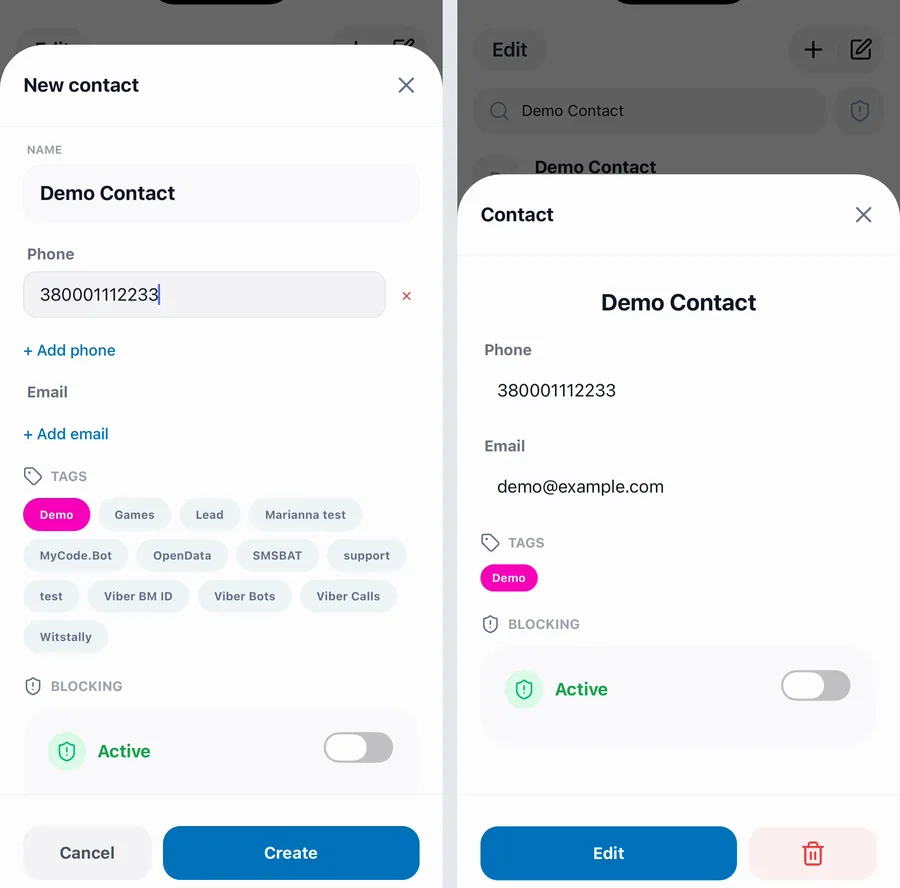
- Tap + in the top right corner. The New contact window opens.
- Type the Name.
- Tap + Add phone and type the number with the country code, for example 380XXXXXXXXX. Add more phones the same way if needed.
- Tap + Add email if you have the customer’s email.
- Under Tags, tap the tags that fit. A picked tag is highlighted.
- Tap Create. The app shows Contact created.
Find a contact
Type a name or part of a phone number in Search contacts… at the top of the list.
The contact card
Tap a contact to open its card: phones, emails, tags, the channels the customer has written from, and Blocking.
To block a contact, turn on the switch in Blocking, write the reason in Blocking comment and tap Save blocking.
Edit a contact
- In the card, tap Edit.
- Change the name, phones, emails or tags.
- Tap Save. The app shows Contact info updated, and the changes are in the card at once.
Delete a contact
In the card, tap the red bin and confirm with Delete. The contact disappears from the list.
Common questions
Do contacts from the phone’s address book appear here? No. The app does not read your phone’s contacts. The list holds only the contacts of your organization in SMSBAT.
Where do the tags come from? They are created in the web workspace, see Templates, contacts and settings. You can also add a tag to a chat’s contact with a swipe in the chat list, see Quick actions in the mobile app.
Can I start a chat with a contact from here? Start it with the pen in the chat list, see Start a new chat in the mobile app.