
The main screen of the mobile app
After you sign in, the Omnichannel Contact Center by SMSBAT app opens on the chat list. It holds the chats from every connected channel: Viber, Viber bots, Telegram, WhatsApp, Facebook, Instagram, the website widget, Rozetka, Prom and OLX. This page explains what you see on it.
For everything else in the app, see the Mobile app guide. To sign in, see Sign in to the mobile app.
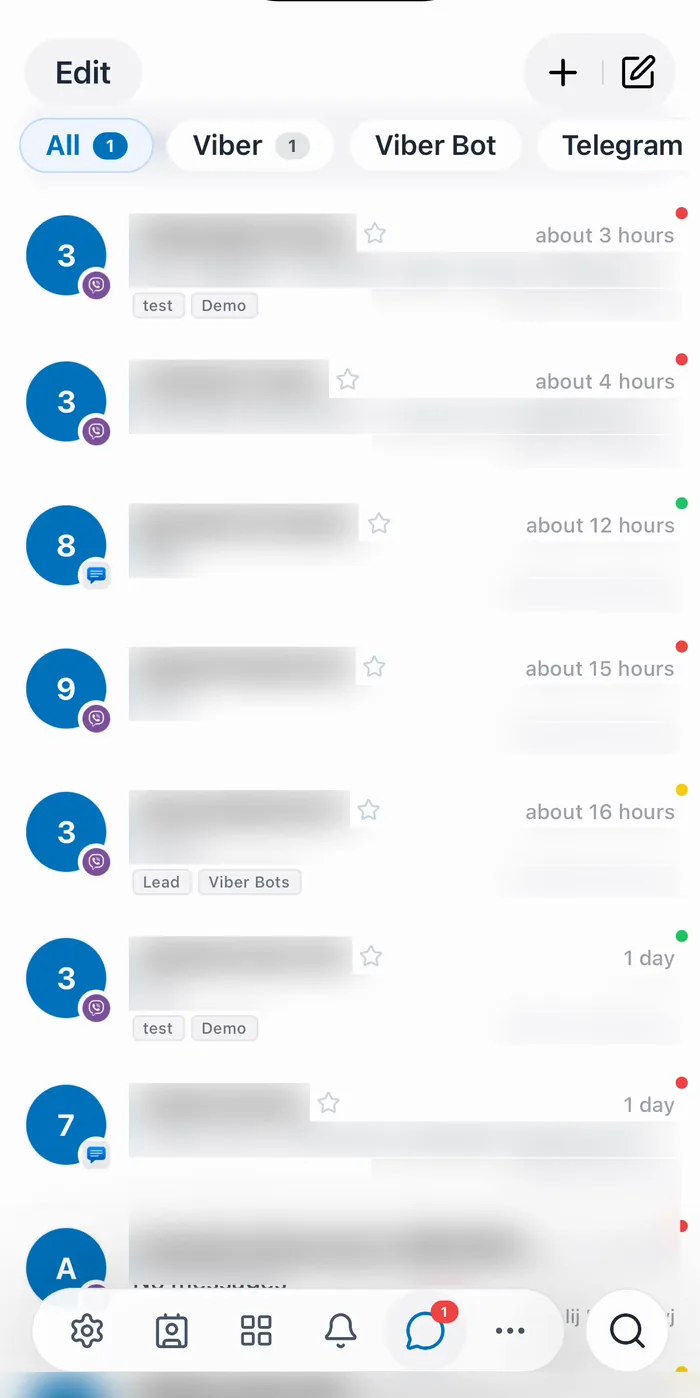
The bottom bar
At the bottom of the screen there is a bar with icons and, next to it, a round search button.
| Icon | Opens |
|---|---|
| Gear | Settings: your operator data, theme, language, display format and Log Out. |
| Contact card | Contacts: the customer list with Search contacts…. |
| Grid | Publications: comments on Facebook and Instagram posts, Reels and stories. |
| Bell | Notification Center. The red badge is the number of unread notifications. |
| Speech bubble | The chat list. The red badge is the total number of unread messages. |
| Three dots | The filter menu: unread, starred, by tag, reset. While a filter is on, this icon turns into a funnel. |
| Magnifier (round button) | Search across chats by phone number or name. |
What a chat row shows
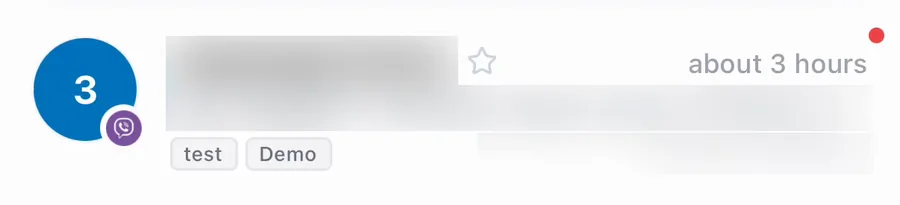
| Part of the row | What it means |
|---|---|
| Avatar with a small icon | The customer’s photo or first letter. The small icon in the corner is the channel: Viber, Viber bot, Telegram, widget and so on. |
| Name | The customer’s name, with the phone number in brackets when it is known. |
| Star | Tap it to mark the chat as starred. Starred chats can be shown with the Starred filter. |
| AI badge | An AI agent is connected to the chat. |
| Last message | The latest message. It is bold and blue while there are unread messages. |
| Time | When the last message arrived, for example about 3 hours or 1 day. |
| Tags | The chat’s tags, for example VIP or Lead. |
| Operator | The operator assigned to the chat, or the bot, page or widget name, and the number of unread messages. |
| Coloured dot | The chat status, see below. |
Tap a row to open the chat. Opening a chat marks it as read.
Status colours
| Dot | Status |
|---|---|
| Blue | New: nobody has replied yet. |
| Red | Open: an operator is working on it. Your first reply switches a new chat to open. |
| Yellow | Waiting: waiting for the customer. |
| Orange | On Pause |
| Green | Closed |
You change the status inside the chat: three dots in the chat header, then Change status. See Chat statuses.
Channel chips
The row of chips under the header filters the list by channel: All, Viber, Viber Bot, Telegram, Whatsapp, Facebook, Instagram, Widget, Rozetka, Prom, OLX. Only channels that appear in your chats are shown. Swipe the row sideways to see more.
- Tap a channel, for example Viber. Only chats from that channel stay in the list, and the three-dots icon in the bottom bar turns into a funnel.
- Tap All to show every chat again.
The number on a chip is how many chats in that channel have unread messages.
Refresh and search
- Pull the list down to refresh it. Older chats load automatically as you scroll down.
- After a refresh, or when you scroll to the very top, the Search chats… field appears above the first chat.
- The round magnifier button opens the search across chats by phone number or name, with its own channel chips.
Common questions
The list is empty. Check the bottom bar: a funnel instead of three dots means a filter is on. Open the filter menu and tap Reset filters, or tap All in the channel chips.
A channel is missing from the chips. Only channels that appear in your chats are shown. A channel without chats has no chip.
What does the red number on the speech bubble mean? The total number of unread messages in all your chats.
Can I see the chats of one customer as one row? Yes. In Settings → Display format choose Chat threads: conversations from the same number and channel are combined into one row.
Why does the list change by itself? New messages arrive in real time and the list is updated while the app is open.