
Comments and mentions in the mobile app
A comment is a note for your colleagues inside a chat. The customer never sees it. Use comments to hand over context (“the customer already paid, waiting for the invoice”), to ask a colleague for help or to leave a reminder for the next shift. Comments written in the app also appear in chat.smsbat.com, and comments from chat.smsbat.com appear in the app.
This page is about the SMSBAT Omni mobile app. For everything else in the app, see the Mobile app guide.
How a comment looks
A comment is shown in an orange bubble with a lock and the label Comment above the text. Operators’ messages to the customer are blue, and the customer’s messages are white (dark grey in the dark theme).
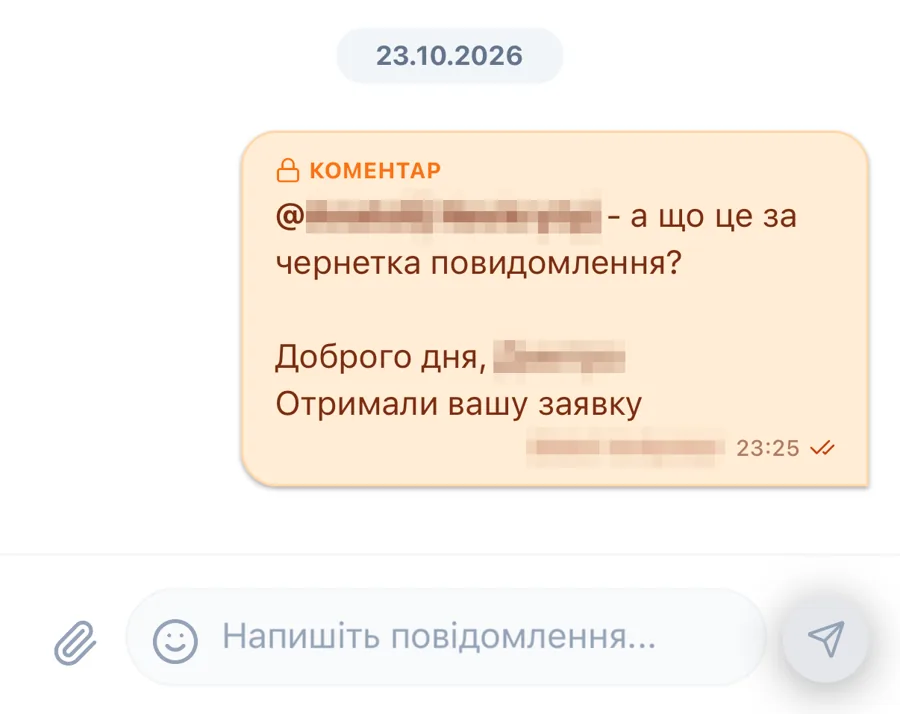
A mention of a colleague is shown in bold as @Name.
Write a comment
There are two ways to switch the message box to comment mode.
Swipe the send button up
- Open the chat.
- Swipe the send button (the paper plane on the right) upwards.
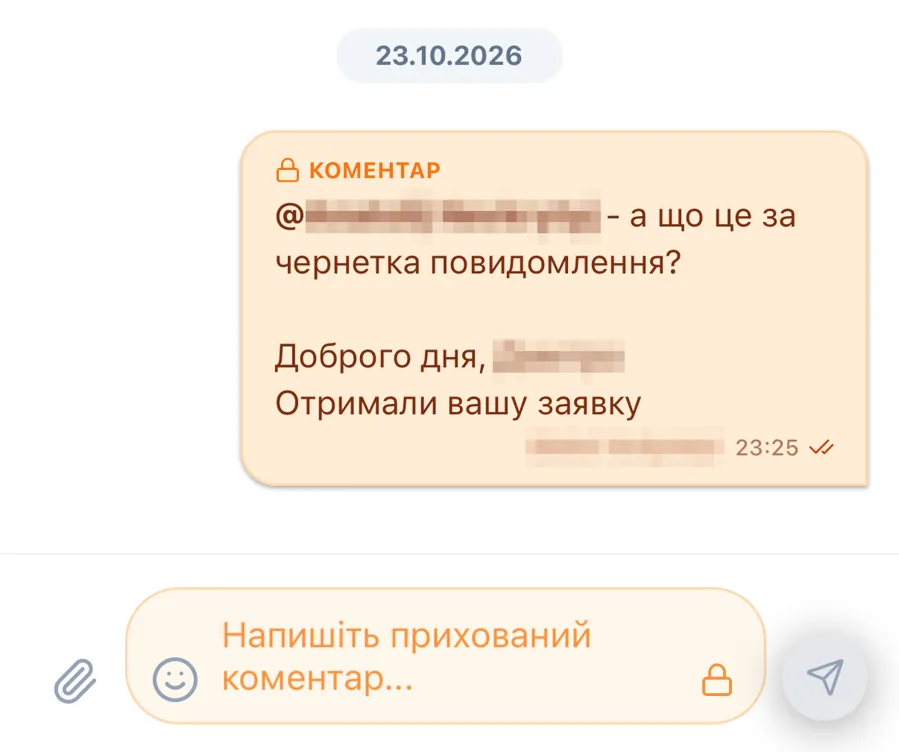
- The message box turns orange and shows Write a hidden comment….
- Type the comment and tap the send button.
To go back to a normal message before sending, swipe the send button up once more. After a comment is sent, the box switches back to normal messages on its own.
Mention a colleague with @
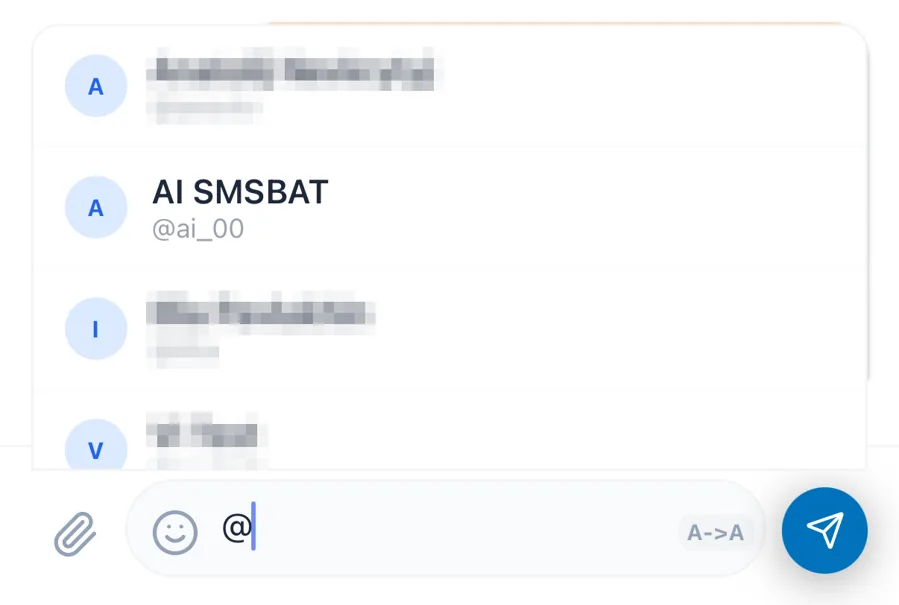
- In the message box, type @.
- A list of operators of the chat’s organization appears above the box. Keep typing to filter it by name or login.
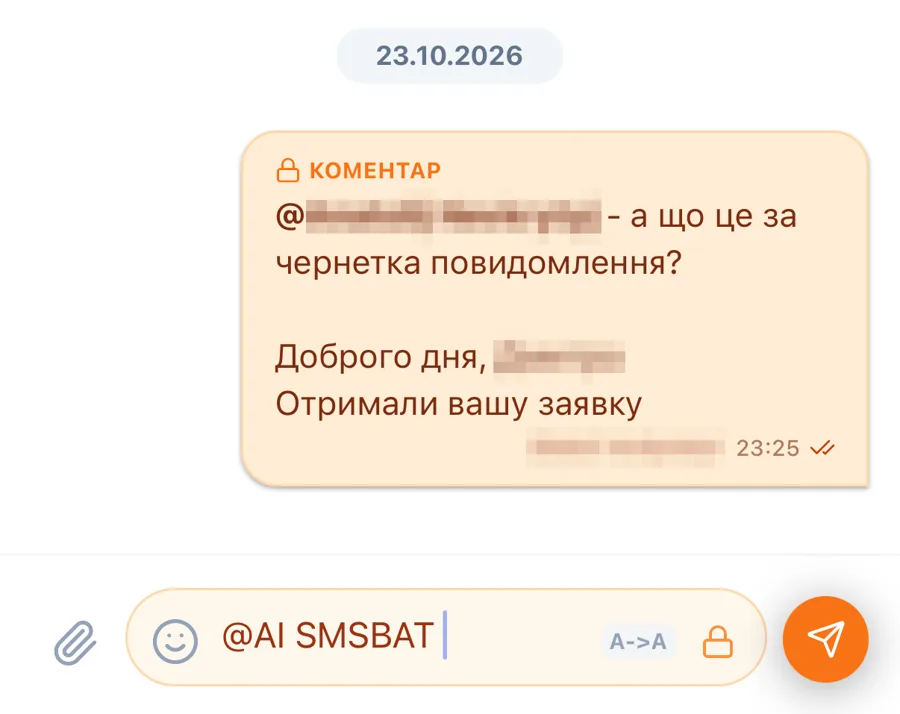
- Tap a colleague. Their name is inserted as @Name and the box switches to comment mode (orange).
- Finish the text and tap the send button.
The colleague sees the mention highlighted in chat.smsbat.com.
If you delete the mention before sending, the box switches back to a normal message, unless you had switched comment mode on yourself.
E-mail addresses
Only a mention of an operator from the list makes a message a comment. A message with an e-mail address such as name@example.com goes to the customer as usual. This works from app version 1.2.8; in older versions any message with the @ character was sent as a comment.
Reply to, edit or delete a comment
Touch and hold a comment to open Message actions:
| Action | What it does |
|---|---|
| Reply | Quotes the comment above the message box, so your answer refers to it. |
| Edit | Puts the text into the message box with the Editing: bar. Change it and tap send. Available for text comments written by operators. |
| Delete | Asks Delete message? and removes the comment after you confirm. Available for messages written by operators. |
Common questions
Can the customer see a comment? No. Comments are stored with the chat for operators only and are never sent to the customer’s messenger.
I typed an e-mail address and the box turned orange. Update the app to version 1.2.8 or later. In older versions any @ switched the message to a comment.
The colleague I want to mention is not in the list. The list shows operators of the chat’s organization. Check that the colleague is an operator of this organization in omni.smsbat.com, see How to create operators.
A mention shows as @… instead of a name. The mentioned operator is not in the current operator list, for example because they were removed from the organization.
I sent a comment by mistake as a normal message. Check the colour before you tap send: orange means comment, blue means the customer gets it. A message that has reached the customer cannot be called back from the app; if needed, write to the customer to correct it.